
3 min read
How can I manage my listings?
In the Selling section, you have full control over all products you've listed. You can easily see which items are active, scheduled, sold, or deactivated, and respond quickly to bids and buyer inquiries.
Tip
Photos and videos make a great first impression
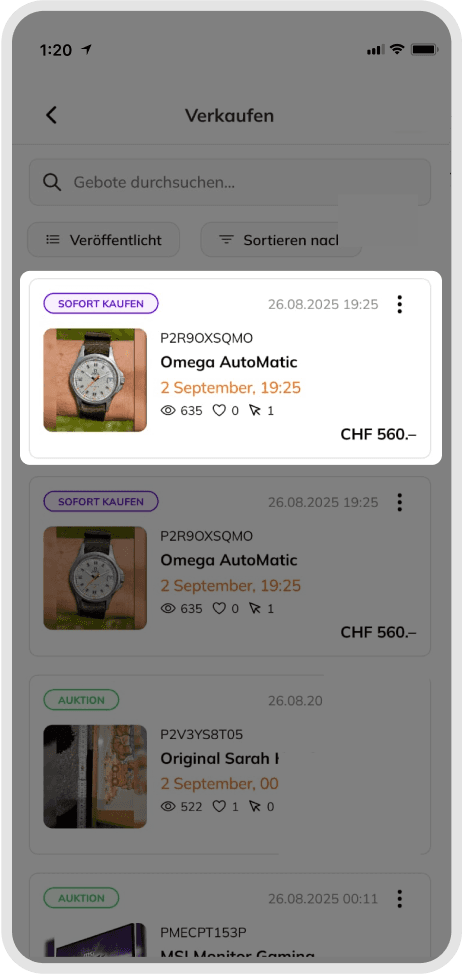
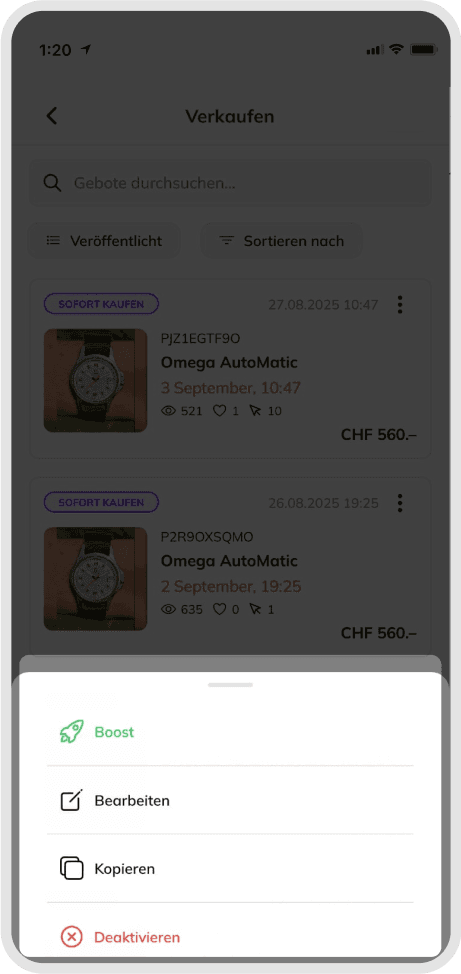
The Three-Dot Menu: Your Control Center for Each Listing
Next to every product, you'll see a menu with three dots. This menu gives you access to all available actions for that listing:
• Before any bids or price offers are placed, you have full flexibility: adjust the price, change shipping options, replace photos, or deactivate and relist the item at any time.
• Once a bid or price offer has been received, your listing becomes fixed to ensure transparency and trust for buyers.
Price is Flat fee of 9.90 CHF per listing.
1. Active – Items currently for sale
Here you'll see all items that are currently live.
• Use this section to monitor bids, respond to questions, or review price offers.
• You can still add Boosts or videos to make your listing stand out.
2. Drafts – Items saved but not published yet
All products you've saved but not yet published appear here.
• These can be fully edited and published at any time.
3. Scheduled – Listings planned for a future date
Products scheduled to go live later will appear here.
• You can edit or delete them freely before publication.
• Boost and video fees are only charged once the listing goes live.
4. Sold – Successfully completed sales
All successfully sold products appear here with direct access to order details.
• Sales from the last 30 days can also be exported as an Excel file.
5. Canceled – Orders canceled or returned
Here you'll find all canceled or returned orders, including reasons and current status.
6. Inactive – Expired or deactivated listings
This section contains products that have expired or were manually deactivated.
• Perfect for editing and relisting items at a later time.
7. Under Review – Listings being checked
If our system flags an item for review, it will temporarily appear here.
• After the review, it will either become active again or move to "Rejected."
8. Rejected – Listings requiring adjustments
Listings rejected due to missing details or rule violations appear here.
• Update them and resubmit to get them live again.
Good to know
As a seller, you have full flexibility to edit or deactivate your listing before it receives any bids. Once bids are placed, Orsetto locks key details to protect both buyers and sellers, ensuring a fair and transparent process.
Was this article helpful for you?
Articles you might be interested in
Need More Help?
If you need any further assistance, we will be happy to help you.